JavelanX Time Entry
JavelanX Time Entry brings enterprise-wide time entry to the desktops of your
service professionals, increasing the accuracy and timely capture of project
activity information for billing. Designed for local and wide area networks
with client/server architecture, JavelanX Time Entry captures
professional time as you work and includes validation and lookup against
clients, projects and activities. For the timekeeper on the move, JavelanX
Time Entry offers browser internet and non-internet access to both time entry and
performance statistics, so your staff is never out of touch.
Capture Time as You Work
Timekeepers open to a Calendar View, showing
all reported and pending time with customizable drill down and time reporting
features. A scrollable area displays an unlimited number of Time Templates for
all open time entries, including active timers and pending time. Simply click
on the stopwatch as you work and JavelanX Time Entry accurately tracks
time spent on that task. You can quickly switch between tasks with the mouse.
The unique Time Template allows you to enter time by the day or for multiple
days --- simply point and click to highlight days, then drop the template into
the highlighted area. Drag and drop lets you easily assign a time entry to a
day, or right mouse click to edit, delete and copy timers.
Drill Down To Details
JavelanX Time Entry=s
Calendar View gives your professionals access to all time reporting history,
with drill down and user-customizable detail display. Simple point and click
selectors change your display to show billable/non-billable time,
pending/submitted time or total time for any month. Click on a day, highlight
selected days or a series of days to drill down to a list of time entries.
Colorful icons indicate the status of each entry. Change the order of any
column by clicking on the column heading or pressing the Custom button to
choose your own columns and tailor your display. A report button generates a
printout of selected time entries, for quick review and editing. Click on an
entry, and unbilled or pending time slips are available for editing. Or select
New from the buttons at the bottom to enter a new time slip, template/timer.
Productivity Enhancements
Short cut your entry time with JavelanX
Time Entry=s glossary and spell checking features.
Glossary abbreviations expand into full description text, with no limits to the
number of characters or the number of glossary codes. Customizable for
individual users as well as system-wide, glossaries reduce entry time for
repetitive descriptions and promote consistency in phrasing and style. Spell
checking offers suggestions and custom dictionaries to store client names or
other work-specific terminology.
Personal Productivity Statistics Y At a Glance
Why wait for monthly reports or staff
meetings to see your performance statistics? With JavelanX Time Entry,
your personal productivity statistics are available on screen, whenever you
want them. Current month and year to date statistics for recorded hours and
dollars, billing and cash realization, department and firm ranking and
effective and average billing rates are available to authorized timekeepers
with a single mouse click.
System Requirements
ServerMicrosoft WindowsNT ServerMicrosoft SQL ServerMicrosoft Internet
Information ServerMicrosoft Transaction ServerInternet Explorer 4.x
ClientWindows 9X, 2000, NT WorkstationInternet Explorer 4.x
JavelanX Time Entry takes advantage of today=s contemporary technology to bring this product to your firm. Built on
the foundation of Microsoft WindowsNTJ , SQLServerJ , and
ActiveX, JavelanX Time Entry=s unique design and Microsoft=s recommended 3 tier architecture (client, database server, and business
rule server) result in unprecedented performance, especially in a distributed
operating environment and via your Intranet or Internet.
Overview of Time Desktop
The main window of the Time Form consists of
four areas:
Heading-
The Heading contains the name of the
timekeeper whose calendar is displayed. For professional use, this is the name
of the timekeeper that is currently logged in and is the timekeeper that is to
appear on the time entries that are entered. Users who have authority to enter or
maintain another timekeeper=s time can select the Change Timekeeper option on the main window. The
name of the selected timekeeper will then be displayed. Time is entered for a
single timekeeper at a time.
Time Template Bar-
The Time Template Bar displays beneath the
Heading and displays graphic representations for time templates that assist in
tracking and copying time entries. If no graphics are displayed in this area,
there are no templates set-up for the timekeeper.
Time Templates are creating by accessing the
New Time option form the main window and clicking on the Template check box. A
time form is associated with each template and contains values in any or all of
the time fields. It can be dragged and dropped to any day or days in the
calendar to create a pending time entry with the template information on the
target days. A timer can be started for any template to assist the timekeeper
in tracking time. When the template is dropped in the calendar, the Date of the
time entry is automatically set to the date where the template was dropped.
Refer to the Create a Time Template help for additional information.
Time Calendar-
The Time Calendar displays recorded hours per
day for the timekeeper and selected month/year. Selecting a day in the calendar
will display a list of time entries for that day. From that list, you can drill
down to the time entries and make maintenance changes. All users can modify
their own pending time entries. Submitted time entries can only be modified if
you have authorization to do so. Time entries that are included in a billing
instruction can only be viewed in this form. Billed time can not be modified.
Menu Panel-
The Menu Panel provides access to additional
program features via menu option links and radio buttons as follows:
Menu Option Links provides access to the menu
options: Change Timekeeper, New Time, Submit Time, and Statistics.
Hour Display Options provides a series of
radio buttons for the timekeeper to toggle the display of hours in the
calendar. The timekeeper can choose to see total hours, nonbillable and
billable hours, or pending and submitted hours in each day on the calendar.
Time Form Keyboard Options
Help-
Context Sensitive Help - To learn about a
specific field, dialog box, window, or command button, click the "What's
This? toolbar button": 
The Help Select pointer will display (arrow
and question mark). Click on the desired item or field. A pop-up window will be
displayed with a brief description of what that item or field is used for. As
an alternative, in the time forms, you can position the cursor in a specific
data entry field and press F1. For additional information regarding the item or
field, use the Help link in the main window or the Help button in each of the
dialog boxes.
General Form Help - To display General Form
Help, use the Help link in the main window or the Help button in each of the
dialog boxes. The Search dialog box will be displayed where you can locate
topics in Help via the Contents, Index, Search, or Favorites tab.
Standard Query Lookup-
A Lookup button [Y] is displayed adjacent to any field that has
a query lookup. The query lookup can be invoked by a single click on the Lookup
button, double clicking in the ID or code field, or pressing F4 when the cursor
is positioned in the field.
The query lookup displays a dialog box. There
are two main areas to the box; upper area: search criteria and lower area:
selection list. You can enter search criteria into one or more of the criteria
fields. The lookup performs automatic pattern matching so that you do not need
to enter wildcard characters. By default, the lookup will select those entries
that match the beginning of the word. You have the choice of searching for
entries that match any part of the word, or that exactly match the word only.
To do so, click the desired radio button before performing the search.
Clicking the Search button or pressing Enter
causes data to be selected and displayed in the selection list area of the
dialog box.
To perform a new search, you can edit the
search criteria and click the Search button or press Enter when the input focus
is in the search criteria portion of the window.
In addition, the selection list provides
expandable column widths. Click on the column division between two column
headings and drag the mouse to the left or right to change the width of the
column.
Data in the list can be resorted by any
column in the list by clicking on the desired column=s header. For example, in the Matter lookup
click on the Matter Description column header to sort the matters by matter
short name, or click on the Client Short Name column header to sort the matters
by client short name.
To locate and select an item from the
matching entries you can:
C
Press the
down/up arrows on the keyboard to highlight the desired item, then either click
on the desired item, click the OK button, or press Enter.
C
Click on the
scroll bar to locate the desired item, then click on the desired item
C
Type a
character that matches the first character of the ID or code desired. The first
list item that matches this character will be highlighted. You can then select
this item by either clicking on the item, clicking the OK button, or pressing
Enter. Or, you can continue locating items further down the list by using the
down/up arrows on the keyboard or by clicking on the scroll bar.
Keyboard Shortcuts-
|
Press
|
To
|
|
F1
|
To see Field Context Sensitive Help in the
time windows.
|
|
F3
|
Expand Glossary Code to pre-defined text,
used in the Narrative field of the
time forms.
|
|
F4 or [Y]
|
Perform a Lookup when the cursor is in an
ID or code field.
|
|
F7
|
Spell Check when the cursor is in the
Narrative field.
|
|
ALT+F4
|
Quit Time Form.
|
|
CTRL+ESC
|
Display the Start Menu.
|
|
ALT+TAB
|
Switch to the window you last used. Or
switch to the next window by pressing ALT while repeatedly pressing TAB.
|
|
CTRL+X
|
Cut.
|
|
CTRL+C
|
Copy.
|
|
CTRL+V
|
Paste.
|
|
DEL
|
Delete
|
|
CTRL+Z
|
Undo.
|
|
t
|
Have today=s system date entered into the Date field of the time form.
|
|
y
|
Have yesterday=s date entered into the Date field of the
time form
|
|
+
|
Have date in the Date field incremented by
1 day in the time form.
|
|
-
|
Have date in the Date field decremented by
1 day in the time form.
|
Time Calendar
The Time Calendar provides a month=s view of hours that have been entered by the
timekeeper. The hours displayed are a sum of all the pending time, submitted
time, and billed time per day. The sum includes client/matter billable,
client/matter nonbillable, and firm nonbillable time.
In each day of the Time Calendar, one or two
daily hour totals will display according to the selection on the main window.
The hours can be displayed in one of three ways:
C
Total hours
entered for each day (click the Hours: Total radio button).
C
Nonbillable/Billable
subtotals for each day (click the Hours: Nonbillable/Billable radio button).
C
Pending/Submitted
subtotals for each day (click the Hours: Pending/Submitted radio button).
The Time Calendar allows you to move form
month to month by clicking on a forward arrow or backward arrow command button.
Additionally, you can select a particular month and/or year from the month
drop-down list box or year drop-down list box.
You can drill down to a list of all time
entries for a single day, week, month or disjointed days in the Time Calendar.
The Time Calendar also serves as an interface
to Time Maintenance. After drilling down on the desired day(s) to the Timeslip
List, click on a selected pending or submitted time entry. The Edit Pending
Time or Edit Submitted Time window will be displayed which will allow a time
entry to be edited. All users can edit their own pending time. Submitted time
can only be edited by authorized personnel.
Selecting Days in the Calendar
Selecting Single Day View:
1.
Click on the
desired day (when the mouse pointer displays as a hand).
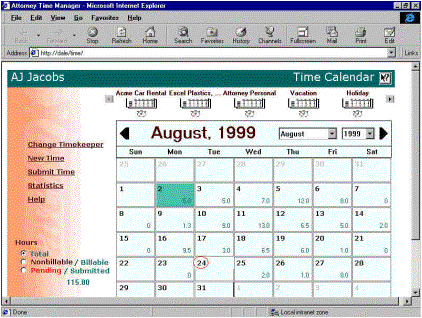
2.
The Timeslip
List will display all the time entered for that day. The Timeslip List has user
expandable column widths. Click on the intersection of two column headers and
drag the mouse to the left or right to change the width of the column.
3.
Data in the
list can be resorted by any column in the list by clicking on the desired
column=s header. For example, click on the Status
column header to sort the time entries by Status. Or, click on the Client ID
column header to sort the time entries by client ID.
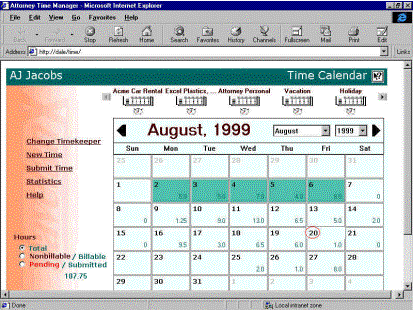
Selecting Week View:
1.
Select
(highlight) the desired days from the Time Calendar:
a. There
are 2 ways to highlight contiguous days in the Time Calendar:
Click on the first day (when the mouse
pointer is displayed as an arrow), then Shift+Click on the last desired day
(when the mouse pointer is displayed as an arrow).
Click on the first day and while holding the
mouse button down, drag across the desired days and release the mouse button.
b. To
un-highlight selected day(s) in the Time Calendar: right click on the desired
day(s) (when the mouse pointer is displayed as an arrow)
c. To
un-highlight all days in the Time Calendar: left click on any day that is not
highlighted (when the mouse pointer is displayed as an arrow)
2. Click
on any of the highlighted days (when the mouse pointer displays as a hand). The
Timeslip List displays all the time entered for the highlighted days.
3. The
Timeslip List has user expandable column widths. Click on the intersection of
two column headers and drag the mouse to the left or right to change the width
of the column.
4. Data
in the list can be resorted by any column in the list by clicking on the
desired column=s header. For example, click on the Status
column header to sort the time entries by Status. Or, click on the Client ID
column header to sort the time entries by client ID.
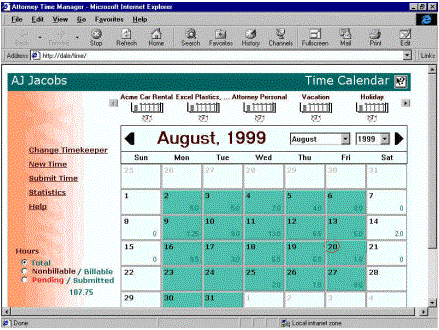
Selecting Month (Working Days) View:
1. Select
(highlight) the desired days from the Time Calendar:
a. Click
on the first day and while holding the mouse button down, drag across the
desired days and release the mouse button.
b. To
un-highlight selected day(s) in the Time Calendar: right click on the desired
day(s) (when the mouse pointer is displayed as an arrow)
c. To
un-highlight all days in the Time Calendar: left click on any day that is not
highlighted (when the mouse pointer is displayed as an arrow)
2. Click
on any of the highlighted days (when the mouse pointer displays as a hand). The
Timeslip List displays all the time entered for the highlighted days.
3. The
Timeslip List has user expandable column widths. Click on the intersection of
two column headers and drag the mouse to the left or right to change the width
of the column.
4. Data
in the list can be resorted by any column in the list by clicking on the
desired column=s header. For example, click on the Status column
header to sort the time entries by Status. Or, click on the Client ID column
header to sort the time entries by client ID.
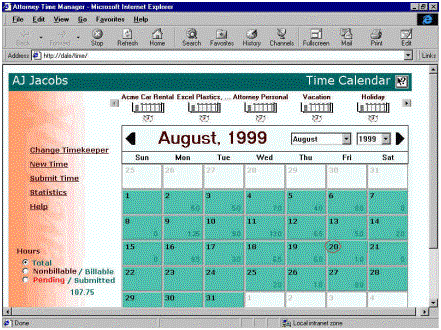
Selecting Month (All Days) View:
1.
Select (highlight) the desired days from the Time Calendar:
a. There
are 2 ways to highlight contiguous days in the Time Calendar:
Click on the first day (when the mouse
pointer is displayed as an arrow), then Shift+Click on the last desired day
(when the mouse pointer is displayed as an arrow).
Click on the first day and while holding the
mouse button down, drag across the desired days and release the mouse button.
b. To
un-highlight selected day(s) in the Time Calendar: right click on the desired
day(s) (when the mouse pointer is displayed as an arrow)
c. To
un-highlight all days in the Time Calendar: left click on any day that is not
highlighted (when the mouse pointer is displayed as an arrow)
2. Click
on any of the highlighted days (when the mouse pointer displays as a hand). The
Timeslip List displays all the time entered for the highlighted days.
3. The
Timeslip List has user expandable column widths. Click on the intersection of
two column headers and drag the mouse to the left or right to change the width
of the column.
4. Data
in the list can be resorted by any column in the list by clicking on the
desired column=s header. For example, click on the Status
column header to sort the time entries by Status. Or, click on the Client ID
column header to sort the time entries by client ID.
Selecting Disjointed Days View:
1. Select
(highlight) the desired days from the Time Calendar:
a.
To highlight multiple disjointed days: Ctrl+Click on the desired day(s) (when
the mouse pointer is displayed as an arrow).
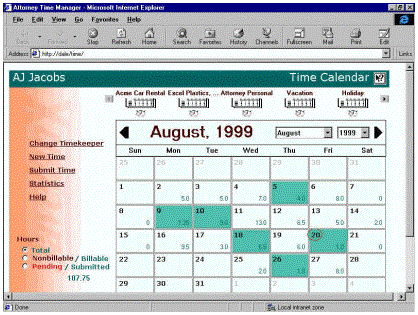
b. To
un-highlight selected day(s) in the Time Calendar: right click on the desired
day(s) (when the mouse pointer is displayed as an arrow).
c. To
un-highlight all days in the Time Calendar: left click on any day that is not
highlighted (when the mouse pointer is displayed as an arrow).
2. Click
on any of the highlighted days (when the mouse pointer displays as a hand). The
Timeslip List displays all the time entered for the highlighted days.
3. The
Timeslip List has user expandable column widths. Click on the intersection of
two column headers and drag the mouse to the left or right to change the width
of the column.
4. Data
in the list can be resorted by any column in the list by clicking on the
desired column=s header. For example, click on the Status
column header to sort the time entries by Status. Or, click on the Client ID
column header to sort the time entries by client ID.
Timeslip List
The Timeslip List displays when you drill
down on one or more days in the Time Calendar or when you choose the Submit
Time option from the main window. If drilling down from the Time Calendar, the
Timeslip List automatically displays a list of all time entries (pending,
submitted, and billed) for the selected days. If the Submit Time option was
chosen, the Timeslip List automatically displays a list of all pending time
entries that currently exist for the timekeeper (regardless of date). From that
list, you can drill down to the time entries and make maintenance changes
(click on the desired time entry).
You can select which columns of data are
displayed in the Timeslip List (except the Check box, Status, Date Worked and
Client ID are permanent columns and cannot be removed). To customize the list,
choose the Custom button. For further information regarding this feature, refer
to Timeslip List Columns help.
In addition, the Timeslip List provides
expandable column widths. Click on the column division between two column
headings and drag the mouse to the left or right to change the width of the
column.
Data in the list can be resorted by any
column in the list by clicking on the desired column=s header. For example, click on the Status
column header to sort the time entries by Status. Or, click on the Client ID
column header to sort the time entries by client ID.
The Check box allows you to select one or
more time entries at a time for actions such as printing on the Timeslip List
Report, submitting to the billing system, or deleting. To select a particular
time entry(s), click in the check box or press the space bar (when the desired
time entry is highlighted, via right mouse click) to display a checkmark. When
all time entries are to be selected, you can press the Select All button. To
deselect all the time entries, you can press the Deselect All button, which is
displayed only after using the Select All button.
The Status indicator displays graphical
symbols to indicate the time entry status:
$
Pending
billable (red light): Billable Time that has been entered for a
client/matter which may be incomplete or in-progress. These time entries can
only be viewed and edited by the user that entered the time. Pending time is
not available for billing, or visible in firm reports and inquiries until it is
"submitted". Time need not exist as pending time prior to submitting
it to billing. When pending time is to be submitted to the billing system, it
must be made complete and valid.
$
Submitted
billable (yellow light): Billable Time that has been recorded
(posted) to the billing system for a client/matter. Time can be entered and
submitted immediately, so long as it is valid, or can be entered as pending
time and later submitted. Submitted time is available for billing, firm
reporting, and inquiry. To submit time, you must have authority to do so. Also,
you can edit, delete or move submitted time if you have authority to do so.
$
Billed
(green light): Billable time
that has been billed to a client/matter. You can not edit, delete, or move
billed time. You can view the detail of billed time by selecting the desired
billed time entries and pressing the Report button.
$
Pending
nonbillable (red watch):
Nonbillable Time that has been entered for a client/matter or a firm nonbillable
group/category which may be incomplete or in-progress. These time entries can
only be viewed and edited by the user that entered the time. Pending time is
not visible in firm reports and inquiries until it is "submitted".
Time need not exist as pending time prior to submitting it. When pending time
is to be submitted, it must be made complete and valid.
$
Submitted
nonbillable (yellow watch): Nonbillable Time that has been recorded
(posted) to the system for a client/matter or firm nonbillable group/category.
Time can be entered and submitted immediately, so long as it is valid, or can
be entered as pending time and later submitted. Submitted time is available for
firm reporting, and inquiry. To submit time, you must have authority to do so. Also,
you can edit, delete or move submitted time if you have authority to do so.
Command buttons available:
$
Select All -
marks all time entries in the list as selected. A checkmark will be displayed
in the check box field for each time entry. This button toggles to Deselect All
when pressed and visa versa.
You can now press the Report button to
produce a Timeslip List Report, press the Submit button to submit pending time
entries, or Delete to delete pending and/or submitted time entries. The Report,
Submit, and Delete buttons only act on "selected" time entries.
$
Report - prints
a report of all selected time entries to the screen in a browser web page. To print the web page to the printer, you
may need to select:
$
File / Page
Setup and choose Orientation: LandscapeView / Fonts and choose SmallestFile /
Print
$
Submit - submit
all selected pending time entries to the billing system for billing and
reporting, if you have privileges to do so.
$
Delete - Delete
all selected time entries (pending and submitted). You can delete your own
pending time entries. You can delete submitted time entries only if you have
authority to do so. Billed time cannot be deleted.
$
New - Access
the New Time form for entry of a new time entry or creation of a Time Template.
$
Custom - Access
the Timeslip List Columns dialog box to customize the data columns displayed in
the Timeslip List dialog box. You can add, remove, change headings, and
re-order the available time columns (except the check box, status, work date,
and client ID are permanent and cannot be removed).
$
Close - Close
Timeslip List and return to the Time Calendar.
Time Template
A Time Template provides a quick method for
creating pending time entries that are the same or similar and timers for
tracking time. Time can be either entered directly via the New Time form or by
using a Time Template.
Create a Time Template
To Create a New Time Template:
1. Select
the New Time option on the main window. The New Time window then displays.
2. Click
the Template check box to display a checkmark.
Any of the other time fields can be
filled-in, but none are required for template set-up. The Date cannot be
entered in a template. The Date field will be automatically filled-in when the
template is used to create a pending time entry (when you drag and drop a
template into a day on the calendar).
3. The
Label field will initially display the client=s short name. The contents of this field will appear with the template
graphic in the Time Template Bar for identification. You can change the Label
as long as it is a different label from the other template labels.
4. Press
the OK button to create the Time Template. The template will then be displayed
in the Time Template Bar.
To Create a New Time Template from an
Existing Time Entry:
1. Click
on a day in the Time Calendar (when the mouse pointer changes to a hand) where
a pending or submitted time entry to be used for the template is recorded. The Timeslip List will then display all the
time recorded on that day.
2. Click
on the desired time entry that is to be used to create a template. The Edit
Pending Time or Edit Submitted Time window will be displayed.
3. Click
the Template check box to display a checkmark.
4. The
Label field will be empty. You need enter a name for the template that is
different from the other template labels. The contents of this field will
appear with the template graphic in the Time Template Bar for reference.
5. Press
the OK button to create the Time Template. The template will then be displayed
in the Time Template Bar.
Note: When creating a template from
an existing time entry, all the entry fields from that time entry (except the
Date) are automatically associated with the template. If you make any changes
to the time entry before pressing the OK button to create the template, those
changes will also be made to the original time entry. To make changes that are
to only effect the template, edit the template after it is created from the
time entry. To edit an existing template, right click with the mouse on the
template and select the Edit option.
To Copy an Existing Time Template:
1. You
can use "drag and drop" or right click on a template and select the >Copy= option to copy an existing template.
a. To
copy a template using drag and drop, press and hold down the left mouse button
when the mouse pointer is positioned on the desired template and drag it to its
new location in the Time Template Bar and release the mouse button.
b. To
copy a template using the Copy option, right click on the desired template and
select the >Copy= option.
2. The
Co. Template window will then be displayed. You need to enter a Label name that
is different from the other template labels, make any desired changes, and
press the OK button to complete the copy process.
Time Template Bar
The Time Template Bar displays beneath the
Heading and displays graphic representations for time templates that assist in
tracking and copying time entries. Up to five templates are visible at one
time. More than five templates will display a left and right arrow button. To
scroll through the available templates, click on the desired arrow button. If
no graphics are displayed in this area, there are no templates set-up for the
timekeeper.
Each template consists of 3 sections: a label
section, an icon section, and a timer section. The label section contains a
reference label that was assigned by the timekeeper. The icon section contains
a default bitmap that is representative of a timeslip. You can change the
icon/bitmap on any template if desired (right click on the template and choose
the >Bitmap= option). The timer section contains a small icon depicting a stopwatch
to indicate that a timer can be associated with the template.
Right clicking on the template graphic will
display a template pop-up menu with the following options:
$
Edit - provides
ability to change any time entry information for the template via the Edit
Template window.
$
Copy - creates
a new template from an existing template. A unique Label must be entered for
the new template.
$
Delete -
removes the template graphic and it=s associated time entry information.
$
Bitmap -
provides ability to select a different template graphic.
$
Restore Bitmap
- only available if the bitmap was changed. This option restores the template
graphic to the default bitmap that is representative of a time entry.
Time Template with Timers
A timer may be associated with any or all of
the templates as an aid in tracking the hours worked value of a time entry. A
timer is used to record time as it is worked. A template with a timer can be
dragged and dropped into any day(s) on the calendar to create a pending time
entry.
To initially start a timer, click the
stopwatch icon for the desired template. The stopwatch is replaced with a time
display in hours, minutes and seconds. The time display will begin with
00:00:01. If desired, you can initialize the time value of the template by
right clicking on the time display. The Edit Timer dialog box will be displayed
where you can enter hours and/or minutes to initialize the time to be other
than 00:00:01.
The timer clicks off seconds until you click
on the timer again. More than one timer can be ticking at the same time.
Whenever a template with a timer that has a non-zero elapsed hours value is
dragged and dropped into a day(s) in the Time Calendar, a pending time entry is
created for each day where it is dropped. You do not need to stop the timer
before dragging and dropping the template into the Time Calendar. The hours on
the time entries will reflect the time from the timer (it overrides any value
that may have been previously entered in the Hours field of the template). If
the Time Rounding Feature is enabled, the time entry hours are rounded
accordingly (next nearest tenths or quarters). When a template is dropped into
the Time Calendar, the timer is reset to the stopwatch.
At this point, you can either leave the value
of the Hours field on the time entry or change it by editing the pending time
entry.
Note: Changing timekeepers (via the
Change Timekeeper option on the main window) or closing/exiting the form will
automatically stop the ticking timers and create pending time entries for the
current system date.
Time Template without Timers
When a Time Template is created, you have the
option of entering a zero or non-zero value in the Hours field. When a pending
time entry is created from a template (by dragging and dropping the template to
a day(s) in the Calendar), the Hours field will be set to the value entered in
the template. At this point, you can either leave the value of the Hours field
or change it by editing the pending time entry.
Copying Time Templates to the Calendar
Time Templates can be used to facilitate
entry of pending time entries that are the same or similar. Regardless if the
timer feature is used, you can drag and drop a template into any day or days in
the Time Calendar. When the template is dropped into a day in the Time
Calendar, a pending time entry is created and a Date automatically assigned
according to where it was dropped in the Time Calendar. The Time Calendar then
reflects the hours worked from the template (either from the Hours field or
from the timer). Pending time entries created from templates must be later
submitted to the main billing system, in order for them to be available for
billing, firm reporting, and inquires.
To Copy a Template into a Single Day on the
Time Calendar:
1. Press
and hold down the left mouse button when the mouse pointer is positioned on the
desired template.
2. Drag
the template to the desired day in the Time Calendar and release the mouse
button, when the drag-and-drop pointer is pointing to the desired day.
To Copy a Template into Several Days on the
Time Calendar:
1. Select
(highlight) multiple days in the Time Calendar:
a. There
are 2 ways to highlight contiguous days in the Calendar:
$
Click on the
first day (when the mouse pointer is displayed as an arrow), then Shift+Click
on the last desired day (when the mouse pointer is displayed as an arrow).
$
Click on the
first day and while holding the mouse button down, drag across the desired days
and release the mouse button.
b. To
highlight multiple disjointed days: Ctrl+Click on the desired day(s) (when the
mouse pointer is displayed as an arrow, in the upper section of the day box).
c. To
un-highlight selected day(s) in the Calendar: right click on the desired day(s) (when the mouse pointer is displayed
as an arrow).
d. To
un-highlight all days in the Calendar: left click on any day that is not
highlighted (when the mouse pointer is displayed as an arrow).
2. Drag
and drop the template into any one of the highlighted days.
Enter Time Overview
New time can be entered in one of the
following ways:
$
Select the New
Time option on the main window (can enter pending and submitted time).
$
Access the
Timeslip List (click on a day in the calendar when the mouse pointer displays a
hand) and then press the New button (can enter pending and submitted time)
$
Drag and drop a
Template into the desired day(s) on the Time Calendar (creates pending time
only, must be submitted at a later time)
New time can be entered as Pending Time or
Submitted Time:
$
Pending Time -
is time that has been entered which may be incomplete or in-progress. These
time entries can only be viewed and edited by the user that entered the time.
Pending time is not available for billing, or visible in firm reports and
inquiries until it is "submitted". Time need not exist as pending
time prior to submitting it to billing. When pending time is to be submitted to
the billing system, it must be made complete and valid.
$
Submitted Time
is time that has been recorded (posted) to the billing system. Time can be
entered and submitted immediately, so long as it is valid, or can be entered as
pending time and later submitted. Submitted time is available for billing,
reporting, and inquiry. To submit time, you must have authority to do so.
New Time Option
When selecting the New Time option from the
main window or pressing the New button in the Timeslip List, the New Time Form
will initially display a portion of the time entry fields:
$
Core set of
required fields - Client, Matter, Date, Hours
$
Narrative
$
Activity,
Payment Code, Location, Specialty, and Days/Months (if Project Rates Feature is
enabled)
$
Template check
box and template "Label" field. You can check the box to have a
template graphic created with the information entered on the Time Form. The
template Label will default to the client short name and will appear with the
template graphic in the Time Template Bar for reference.
In addition, pressing the Details>>
button will unfold the bottom portion of the Time Form. A series of tabs contains
the remainder of the timeslip fields categorized as:
$
Task Based -
When entering time entries for a matter that has a Task Based Billing Code Set
associated with it, Phase, Task and/or Work Codes (which is based on your
set-up for the matter) will be required.
$
Time Codes - Up
to five firm-defined time codes will be displayed if your firm has these fields
enabled. These are optional fields, unless your firm has set them to be
required via form customization.
$
Billing - The
Billing Indicators for the time entry are displayed: Billable/ onbillable,
Hold/No Hold from Billing, Show/No Show on Statement, and Taxable/Nontaxable.
Also the Recorded Value, Billing Hours, Billing Value, and Adjustment
Explanation fields are displayed. These fields are automatically set during
entry of information in the main portion of the Time Form. These fields, except
the Recorded Value field, can be changed.
$
Overrides - The
Rate Set, Rate and Recorded Value for the time entry is displayed in this tab.
You can optionally specify an override Rate Set, Rate or Amount to change the
value of the time entry.
Even though the Time Form requires some of
these fields, you are permitted to enter blank or invalid entries while the
time entry is "pending". All required fields must be filled in with
valid data in order to "submit" the time entry. In addition to the
core set of required fields, there may be fields your firm has required through
form customization or fields conditionally required based on other features
enabled for your system.
Refer to the Time and Template Data Entry
Fields help for additional information regarding the time data entry fields.
Time and Template Data Entry Fields
When you access the New Time, Edit Pending
Time, Edit Submitted Time, Edit Template, and Copy Template forms, the core set
of time data entry fields are displayed.
In addition, pressing the Details>>
button will unfold the bottom portion of the form. A series of tabs contains
the remainder of the time fields categorized as:
$
Task Based -
When entering time entries for a matter that has a Task Based Billing Code Set
associated with it, Phase, Task and/or Work Codes (which is based on your
set-up for the matter) will be required.
$
Time Codes - Up
to five firm-defined time codes will be displayed if your firm has these fields
enabled. These are optional fields, unless your firm has set them to be
required via form customization.
$
Billing - The
Billing Indicators for the time entry are displayed: Billable/ onbillable,
Hold/No Hold from Billing, Show/No Show on Statement, and Taxable/Nontaxable.
Also the Recorded Value, Billing Hours, Billing Value, and Adjustment
Explanation fields are displayed. These fields are automatically set during
entry of information in the main portion of the Time Form. These fields, except
the Recorded Value field, can be changed.
$
Overrides - The
Rate Set, Rate and Recorded Value for the time entry are displayed in this tab.
You can optionally specify an override Rate Set, Rate or Amount to change the
value of the time entry.
Field Definitions:
Template
$
Check box - Ö
=Create Time Template, unchecked=Create new time entry
A Time Template provides a quick method for
creating pending time entries that are the same or similar and timers for
tracking time. Time can be either entered directly via the New Time form or by
using a Time Template.
To create a new Time Template from the Time
Form, click the Template check box to display a T. Any of the other time fields
can be filled-in, but none are required for template set-up. The Date cannot be
entered in a template. The Date field will be automatically filled-in when you
create pending time entries from the template (when you drag and drop a
template into a day on the calendar).
When creating a new Time Template, the Label
field will initially display the client=s short name. The contents of this field will appear with the template
graphic in the Time Template Bar for identification. You can change the Label
as long as it is a unique label from the other template labels.
Alternatively, you can also copy existing
Time Templates or create templates from existing time entries. See the Create a
Time Template help for additional information.
Client
$
Enter Client ID
or Nonbillable Group ID
$
10 alphanumeric
characters
$
Required field
when you submit time
$
Optional field
when enter pending time entry or create Time Template
If the time activity was done for a client,
you enter a Client ID. If the activity is not related to a client, you enter a
Nonbillable Group ID. After you enter the ID, the associated name or
description displays. You can perform a Lookup to search/select the clients and
nonbillable groups if the identifier is not known.
If the Unique Matter ID Entry with Client ID
Auto-Fill feature is in use at your firm, you have the option of not having to
enter the Client ID. After entry of the Matter ID, the Client ID associated
with the entered Matter ID will automatically be filled-in.
Matter
$
Enter Matter ID
or Nonbillable Category ID
$
10 alphanumeric
characters
$
Required field
when you submit time
$
Optional field
when enter pending time entry or create Time Template
If the time activity was done for a client,
you enter the ID of the matter for which it was done. If the activity was not
done for a client and you entered a Nonbillable Group ID in the previous field,
you enter the Nonbillable Category ID related to the Nonbillable Group ID that
was entered. After you enter the ID, the associated name or description
displays. You can perform a Lookup to search/select the matters and nonbillable
categories if the identifier is not known.
If the Matter ID entered has a Task Based
Billing Code Set associated with it, the Phase, Task, and Work Code fields will
automatically display in the Task Based tab and will be required to be entered
prior to submitting this timeslip. Press the Details>> button to access
the Task Based tab.
Label
$
Enter name to
identify Time Template
$
30 alphanumeric
characters
$
Required field
for Time Templates
When creating a new Time Template, the Label
field will initially display the client=s short name. The contents of this field will appear with the template
graphic in the Time Template Bar for reference. You can change the Label as
long as it is a unique label from the other template labels.
When creating a new Time Template from an
existing time entry or copying an existing template, the Label field will be
empty. You need enter a unique Label name for the template. The contents of
this field will appear with the template graphic in the Time Template Bar for
reference.
Date
$
Enter the date
on which the activity occurred
$
mm/dd/yyyy
format
$
Required field
when you submit time
$
Optional field
when you enter pending time
$
Protected field
when creating Time Template
The date can be earlier than today=s date, the same as today's date, or in the
future. When a future date is entered, the Date field will display in yellow
with the warning message >Future Date!=.
Also, the date entered must be within the range of the timekeeper's active and
termination date, and within the matter's active and closing dates.
To have today's date automatically entered
into the field, press the letter: t (in either upper or lower case). To have
yesterday's date automatically entered into the field, press the letter: y (in
either upper or lower case). You also can use the + and - keys on the keyboard
to increment and decrement the date a day at a time, as well as use the spin
box to select another date.
You can perform a Lookup to search/select the
date from a calendar.
When creating/editing a Time Template, you
can not enter a date in the Date field. The Date is automatically filled-in
when time entries are created from the template (by dragging and dropping the
template into a date on the Time Calendar).
Activity
$
Enter
identifier of the activity the timekeeper performed
$
4 alphanumeric
characters maximum
$
Optional field
This is a code for a substantive event in a
course of a case. This is used for analysis of time entry activities and the
firm's practice, for example, Court Appearance. After you enter an activity
identifier, its name or description displays. You can perform a Lookup to
search/select the activity codes if the identifier is not known.
Note: Client/matters that are Task
Based Billing Matters can have the Activity Code "mapped" to a Work
Code. This provides you the ability to enter your firm=s standard familiar time Activity Code in
this field and have the "Work Code" field in the Task Based tab
(accessed via the Details>> button) automatically filled with the client=s specific Work Code. Consult your System
Administrator for additional information regarding this feature.
Hours
$
Enter the
number of hours worked
$
(-)9,999,999:99
maximum
$
Required field
when you submit time
$
Optional field
when enter pending time entry or create Time Template
The number of hours worked can be entered
as:hours and minutes (for example, 1:15 for 1 hour and 15 minutes)hours and
hundredths (for example, 1.25 for 1 and a quarter hours)
If you enter hours as 'hours and minutes',
the form converts it to hours and hundredths and displays it that way.
This field can hold up to seven digits in
front of the colon or decimal point. However, during normal time entry the
maximum for this field is 24.00, the number of hours in a day. In practice, the
maximum of this field is gauged against the maximum number of hours a day any
timekeeper is expected to work. This firm-wide maximum value was set during
installation of the system at your firm. If you enter a value in this Hours
field which, in total with other time already entered for this timekeeper for
this date, is greater than the maximum hours a timekeeper is expected to work,
a warning message displays: "This timekeeper has exceeded maximum hours
for the date worked. Possible duplicate entry."
You can enter a negative value in this field,
if required. If you enter a negative value in this field or in any other
numeric field on the form, all numeric fields on the form must have negative
values or zero. For example, you cannot enter a negative number of hours worked
and then enter a positive billing value. In the same way, if you enter a
positive value in any numeric field, all numeric fields must have positive
values or zero. If you accidentally enter a value in one field which has a sign
that is different than the other numeric fields, an error message displays and
you must change the incorrect sign: "Negative numbers have already been
entered for this transaction, therefore this field must be negative."
The hours entered into this field are
multiplied by the applicable rates to determine the time entry values. The
rates to be used to calculate the time entry's values are determined by the
Rate Hierarchy and Rate Sets associated with the matter, client, or timekeeper.
Days or Months
$
Enter the
number of days or months for the time entry
$
99999999.99 maximum
$
Required field,
if it is displayed, when you submit time
$
Optional field
when enter pending time entry or create Time Template
This field is only displayed if the Project
Rate feature is in use at your firm. If the Project Rate Feature is enabled,
entry of a value in the Days or Months field will be converted to the number of
hours (based on the Hrs/Day field in the Project Rate Maintenance form for the
timekeeper and specialty code combination, and the holiday file specified for
the user in the User Profile). The number of hours is then displayed in the
previous Hours field.
Rounded To
$
Indicates
whether time entry is rounded up to the nearest Tenths or Quarters
$
Protected field
The Time "Rounded To" field is only
displayed when the Time Rounding Feature has been enabled for your system and
after you have entered valid client/group and matter/category IDs. When the
Time Rounding Feature is enabled, the recorded hours and billing hours entered
on a time entry will be rounded up to the next nearest tenth of an hour or to
the next nearest quarter of an hour. The matter entered on the time entry will
determine the rounding basis, either "Tenths" or
"Quarters".
Time entered for firm nonbillable
groups/categories will automatically be rounded up to the next nearest tenth of
an hour.
Narrative
$
Enter narrative
to describe time entry
$
Unlimited
alphanumeric characters
$
Optional field
You can enter an unlimited narrative
description per time entry. A pop-up menu is available with the following
commands when you click the right mouse button in the Narrative field:
$
Undo - you can
undo the most recent action by choosing the Undo command. As an alternative you
can use CTRL+Z.
$
Cut - select
the desired text that is to be removed and choose the Cut command. The selected
text is moved to the Clipboard. As an alternative you can use CTRL+X.
$
Copy - select
the desired text that is to be copied and choose the Copy command. The selected
text is copied to the Clipboard. As an alternative you can use CTRL+C.
$
Paste - when
you choose the Paste command, the text from the Clipboard is inserted at the
insertion point. As an alternative you can use CTRL+V.
$
Delete - select
the desired text that is to be removed and choose the Delete command. The
selected text is not moved to the Clipboard. As an alternative you can use DEL.
$
Select All -
you can instantly select the entire Narrative by pressing Select All.
$
Glossary Codes
- You have the ability to use Glossary Codes for frequently used words or
phrases of text in the Narrative field. You can perform a Lookup to
search/select the Glossary Codes if the code is not known (the first 50
characters will be displayed per description) by choosing the Glossary Codes
option from the pop-up menu or by pressing F4 when the cursor is positioned in
the Narrative field. You can select or enter an unlimited number of glossary
codes and they can be entered anywhere within your narrative.
$
Expand - You
have the ability to use Glossary Codes for frequently used words or phrases of
text in the Narrative field. Enter an existing Glossary Code (for example, tc)
you want to use into the Narrative field and immediately choose the Expand
option from the pop-up menu or press the F3 key to have the code expanded to
its' text narrative (for example, Telephone conference). Codes entered
following other text must be preceded with a 'space' before you choose the
Expand option or press F3. You can select or enter an unlimited number of
glossary codes and they can be entered anywhere within your narrative.
$
Spell Check -
You can perform spell checking on the entered Narrative by choosing the Spell
Check option from the pop-up menu or by pressing the F7 key, when the cursor is
positioned in the Narrative field. Spell checking will automatically check the
words against the standard dictionary provided as well as against any custom
dictionaries you establish. You can then choose to replace the word with a word
from the suggestion list, enter your own word, or ignore the word.When spell
checking is done, a window will display indicating the number of words checked,
the number of words misspelled, and the number of words replaced.
For additional information regarding the
Spell Check features, press the Help button in the Spell Check dialog box
(which is displayed when a word is misspelled in the narrative field). This
product contains VisualSpellerJ from Tidestone Technologies, Inc. Copyright8 1994-1999.
Special Characters and Formatting:
1. Special
characters printed in your text on bill statements:
To print a: \ Enter: \\ in your text, only
one \ will print. If you only enter one \, the \ and some of the following
characters will not print on your bill statement.
To print a: { Enter: \{ in your text, only
the { will print.
To print a: } Enter \} in your text, only the
} will print.
2. Formatting
Control:
To specify formatting control in your text,
enter the following command:{control word space text}Precede the desired
control word with a left curly brace.Press the Space Bar between the control
word and the desired text description. Follow the text description with a right
curly brace.
Control Word Meaning
\b Bold
\caps All
capitals
\i Italic
\ul Continuous
underline
\uld Dotted
underline
\uldb Double
underline
\ulw Word
underline
For example:
Meeting with {\i\b Mark L. Jenkins} regarding
{\ul legal remedies}.
Will print as:
Meeting with Mark L. Jenkins regarding
legal remedies.
Payment Code
$
Indicates
payment arrangement made with client/matter, if entered on Matter Record
$
Protected field
In the Matter Entry/Maintenance form you have
the option of specifying a Payment Code to indicate what type of payment
arrangement you have set-up with your client/matter. This code appears as
reference information on the time and invoice entry/maintenance type forms for
this matter. For example, CP=Client Pay, FP=Firm Pay, FPCR=Firm Pay/Client
Reimbursement, S=Split.
Location
$
Indicates
timekeeper=s office location
$
4 alphanumeric
characters maximum
$
Optional field
This field is automatically filled in if the
timekeeper is associated with a particular office location of your firm. You
can change this field if desired. After you enter a location identifier, its
name or description displays. You can perform a Lookup to search/select the
location codes if the identifier is not known.
Specialty
$
Enter the
identifier of the specialty the timekeeper=s activity falls.
$
4 alphanumeric
characters maximum
$
Optional field
The Specialty further classifies the time
entry into areas in which the timekeeper specializes. For example, a timekeeper
may work in the litigation area of law and specialize in trial work. After you
enter a specialty identifier, its name or description displays. You can perform
a Lookup to search/select the specialty codes if the identifier is not known.
Note: If the Project Rates feature is in use
at your firm, this field will be required.
Phase (Task Based Tab)
$
Enter Task
Based Billing Phase Code
$
5 alphanumeric
characters maximum
$
Required field
when field is not protected and you submit time, if the matter is a Task Based Billing matter
$
Optional field
when enter pending time or create Time Template for a Task Based Billing matter
$
Protected field
when matter is not a Task Based Billing matter
The Phase Code field can only be entered if
the specified client/matter is a Task Based Billing Matter (the client/matter
has a "Task Based Billing-Fee Code Set ID" identified in the Matter
Entry/Maintenance form) AND the Code Set=s Task Level=Phase/Task/Work or Phase/Task or Phase.
Enter the desired Phase Code for this time
entry. You can perform a Lookup to search/select the phase codes if the
identifier is not known. Only the Phase Codes associated with the Code Set
identified for the matter in Matter Entry/Maintenance will be displayed in the
lookup.
This field displays in the Task Based tab,
after pressing the Details>> button.
Task (Task Based Tab)
$
Enter Task
Based Billing Task Code
$
5 alphanumeric
characters maximum
$
Required field
when field is not protected and you submit time, if the matter is a Task Based
Billing matter
$
Optional field
when enter pending time or create Time Template for a Task Based Billing matter
$
Protected field
when matter is not a Task Based Billing matter
The Task Code field can only be entered if
the specified client/matter is a Task Based Billing Matter (the client/matter
has a "Task Based Billing-Fee Code Set ID" identified in the Matter
Entry/Maintenance form) AND the Code Set=s Task Level=Phase/Task/Work or Phase/Task or Task.
Enter the desired Task Code for this time
entry. You can perform a Lookup to search/select the task codes if the
identifier is not known. If the Code Set=s Task Level=Phase/Task/Work or Phase/Task, only the Task Codes
associated with the previously entered Phase Code for the Code Set identified
for the matter in Matter Entry/Maintenance will be displayed in the lookup. If
Task Level=Task, only the Task Codes associated with the Code Set identified
for the matter in Matter Entry/Maintenance will be displayed in the lookup.
This field displays in the Task Based tab,
after pressing the Details>> button.
Work (Task Based Tab)
$
Enter Task
Based Billing Work Code
$
5 alphanumeric
characters maximum
$
May be a
required field when field is not protected and you submit time, if the matter is
a Task Based Billing matter
$
Optional field
when enter pending time or create Time Template for a Task Based Billing matter
$
Protected field
when matter is not a Task Based Billing matter
The Work Code can only be entered if the
specified client/matter is a Task Based Billing Matter (the client/matter has a
"Task Based Billing-Fee Code Set ID" identified in the Matter
Entry/Maintenance form) AND the Code Set=s Task Level=Phase/Task/Work or Work. The Work Code field will be
optional if the WORK REQUIRED field in the Code Set is set to "No".
The Work Code field will be required if the WORK REQUIRED field in the Code Set
is set to "Yes". Enter the
desired Work Code for this time entry. You can perform a Lookup to
search/select the work codes if the identifier is not known.
1. If
the Code Set=s TASK LEVEL=Phase/Task/Work and WORK
REQUIRED=Yes, only the Work Codes associated with the previously entered
Phase/Task Codes for the Code Set identified for the matter in Matter
Entry/Maintenance will be displayed in the lookup. In addition, the Work Code
field is a required field.
2. If
the Code Set=s TASK LEVEL=Phase/Task/Work and WORK
REQUIRED=No, all Work Codes entered in the system will be displayed in the
lookup. In addition, the Work Code field is an optional field.
3. If
TASK LEVEL=Work and WORK REQUIRED=Yes, only the Work Codes associated with the
Code Set identified for the matter in Matter Entry/Maintenance will be
displayed in the lookup. In addition, the Work Code field is a required field.
4. If
TASK LEVEL=Work and WORK REQUIRED=No, all Work Codes entered in the system will
be displayed in the lookup. In addition, the Work Code field is an optional
field.
Note: Client/matters that are Task
Based Billing Matters can have the Activity Code "mapped" to a Work
Code. This provides you the ability to enter your firm=s standard familiar time Activity Code field
and have this "Work Code" field automatically filled with the client=s specific Work Code. Consult your System
Administrator for additional information regarding this feature. This field displays in the Task Based tab,
after pressing the Details>> button.
Time Codes (Time Codes Tab)
$
Enter
firm-defined field abbreviations
$
4 alphanumeric
characters each
$
Optional fields
Time Codes will display only if your firm had
chosen at installation to use Time Firm-Defined Fields. Up to five firm defined
codes are available.
Enter the appropriate code for the time entry
being entered. The code description will display to the right of the field. You
can perform a Lookup to search/select the time codes if the identifier is not
known.
These fields display in the Time Codes tab,
after pressing the Details>> button.
Billable (Billing Tab)
$
Indicates
whether or not this time can be billed to the client/matter
$
Check box
- T =Billable, unchecked=Nonbillable
Billable - Click the check box to display a T, if you entered a client and matter in the
CLIENT/GROUP and MATTER/CATEGORY fields and you want to bill the time entry to
the client/matter. This field defaults to 'Billable= for matters with a Matter Type of Billable,
Temporary, Pro Bono, Personal, Potential, Confidential, but you can change it
to 'Nonbillable' if you do not want to bill the time entry to the
client/matter.
If you entered a nonbillable group and
category in the CLIENT/GROUP and MATTER/CATEGORY fields you cannot change the
Nonbillable indicator to Billable.
When this field is 'Billable', the BILLING
VALUE field becomes required.
Nonbillable - Click the check box until it is empty, if you do not want to bill
the time entry to the client/matter. This field defaults to >Nonbillable= for matters with a Matter Type of Chargeable Nonbillable or Firm
Personnel. Nonbillable time entries on client/matters are viewed as >write offs= for reporting purposes. The time entry will have a Billing Value and
Billing Hours of 0, however the time entry will still have a Recorded Value and
Recorded Hours. The Recorded Value and Hours for nonbillable time entries are
displayed on reports such as the Aged Unbilled Time Report, the Aged
Work-in-Progress Report, and Matter Inquiry.
If you entered a nonbillable group and
category, this field defaults to empty (Nonbillable) and you cannot change it.
When this field is 'Nonbillable', all other
numeric fields in the Billing tab and Override tab (except the override fields)
become display-only.
This field displays in the Billing tab, after
pressing the Details>> button.
Hold from Billing (Billing Tab)
$
Indicates
whether or not billable time can be billed to the client/matter at this time.
$
Check box - T =Yes, unchecked=No
This field only applies to billable time,
therefore if the value in the BILLABLE field is empty (Nonbillable), the value
of this field is T, and
cannot be changed. If the BILLABLE field displays a T (Billable), the default for this field is
'empty'.
Yes - Click check box to display a
T, if the billable time entry should not be
billed during the current billing cycle and placed on hold. A time entry on
hold cannot be billed until taken off of hold.
Any billable time which is held from billing
can be billed at a later time by using the Edit Pending Time or Edit Submitted
Time form to change the value of this field to 'empty'.
No - Click the check box until it is empty, if the billable time entry is
to be billed during the current billing cycle, not placed on hold.
This field displays in the Billing tab, after
pressing the Details>> button.
Show on Statement (Billing Tab)
$
Indicates
whether or not the time detail for this time entry should be shown on the
billing statement when it is billed
$
Check box - T =Yes, unchecked=N
This applies only if the fee billing
statement for this matter is a detailed statement. If the billing statement
shows summarized fee values, this time detail is not shown regardless of the
value of this field.
This field only applies to billable time,
therefore if the value in the BILLABLE field is empty (Nonbillable), the value
of this field is empty (No) and cannot be changed. If the BILLABLE field shows
a T (Billable), the default for this field is
a T (Yes), but you can change the value to empty (No) if this time entry
should not be shown on the billing statement.
Yes - Click the check box to display a
T, if the billable time entry should be shown
on the bill statement. No - Click the check box until it is empty, if
the billable time entry is not to be shown on the bill statement. If this field
is left empty, the time detail is not shown on the statement and the time entry
value is included in the fee value total of the bill. This field displays in
the Billing tab, after pressing the Details>> button.
Taxable (Billing Tab)
$
Indicates
whether or not the time entry is taxable
$
Check box
- T =Yes, unchecked=No
This field will only display if your firm is
using the Sales Tax Feature and if the specified client/matter is designated as
taxable (assigned a Fee Tax Rate Set ID in the Matter Entry/Maintenance form).
The default value for this field is T (Yes).
Yes - Click the check box to display a
T, if the time entry is taxable. The actual
tax on the time entry will be calculated when the matter is billed.
No - Click the check box until it is empty, if the time entry is not
taxable. When this timeslip is billed, tax will not be calculated on this
timeslip.
This field displays in the Billing tab, after
pressing the Details>> button.
Recorded Value (Billing Tab)
$
Displays
recorded value of time entry
$
Protected field
This field usually shows the dollar value of
the hours worked based on the Rate Set and Rate shown in the Overrides tab.
However, if there is no Rate Set or if an Override value has been entered in
one of the OVERRIDE fields, this shows the Override value of the time worked.
If an Override Rate Set or hourly Rate has been entered, this value is the
product of the (Hours X Override Rate). If an Override Amount has been entered,
this value is the same as the Override Amount.
This value is used on reports and during
billing preparation to compare the billing value to the actual value of the
time worked.
This field displays in the Billing tab, after
pressing the Details>> button.
Billing Hours (Billing Tab)
$
Enter the
number of hours the time entry will be billed at, if different from the Hours
field
$
(-)9,999,999:99
maximum
$
Required field,
if a Ö is displayed in the BILLABLE field, when you submit time
$
Optional field
when enter pending time or creating Time Template
The default value of this field is the value
you entered in the HOURS field in the main section of the Time Form. You can
change this value in order to bill the client/matter for a different number of
hours than the actual hours worked.
If the BILLABLE field is empty (Nonbillable),
this field is protected and contains a value of zero.
This field displays in the Billing tab, after
pressing the Details>> button.
Billing Value (Billing Tab)
$
Enter the
dollar value the time entry will be billed at, if different from the Recorded
Value field
$
(-)999,999,999,999.99
maximum
$
Required field,
if a Ö is displayed in the BILLABLE field, when you submit time
$
Optional field
when enter pending time or create Time Template
The billing value is the product of the
related hourly Rate (displayed in the Overrides tab to the right of the Rate
Set field) multiplied by the Billing Hours. You can change the Billing Value,
if desired. If this time entry is 'Billable' and you enter a billing value of
'00.00', a warning message displays.
If there is no Rate Set and Rate for this
time entry, this field does not display a default value until you enter an
Override value in one of the OVERRIDE fields located in the Overrides tab.
If the BILLABLE field is empty (Nonbillable),
this field is display-only and contains a value of zero.
This field displays in the Billing tab, after
pressing the Details>> button.
Explanation (Billing Tab)
$
Enter a billing
adjustment explanation
$
80 alphanumeric
characters maximum
$
Optional field
A billing adjustment explanation can only be
entered if the Billing Value is different than the Recorded Value.
This field displays in the Billing tab, after
pressing the Details>> button.
Rate Set / Rate / Class (Overrides Tab)
$
Displays
information about the Rate Set that is related to this time entry
$
Protected field
The Rate Set field displays the identifier
for the Rate Set. The Rate field displays the hourly Rate within the Rate Set
which applies to the timekeeper on the date worked. The Class field is blank if
the timekeeper's own rate is being used. If a timekeeper class rate is being
used, the identifier of the timekeeper's class displays.
The system follows a specific process for
finding the related Rate Set. For time charged to a matter, the system first
looks at the Rate Hierarchy for the matter. The ID for this hierarchy was
entered through the Matter Entry or Matter Maintenance form. The Rate Hierarchy
is a list of rate sets in order from the highest priority Rate Set for this
matter to the lowest priority. The hierarchy may contain only one Rate Set or
it may contain many. Typically, the first two Rate Sets in the hierarchy are
'MATTER' and 'CLIENT', but your firm may have different priority Rate Sets.
The system looks at each Rate Set in the
matter Rate Hierarchy in order from the highest priority to the lowest until it
finds a rate for the timekeeper or the timekeeper's class. The system uses the
first rate that is found for the timekeeper, if the rate was applicable on the
date worked. If no timekeeper rate is found, the system looks for the
timekeeper class rate. If neither the timekeeper nor timekeeper class rate is
found, the system then looks in the next rate of the Rate Hierarchy.
If no valid rate is found for the timekeeper
or timekeeper class, an error message displays. In this case, you can use the
Override fields in the Overrides tab to establish a rate or amount for this
time entry. If you do not use an override value, a time entry without a related
rate cannot be submitted.
For time charged to a nonbillable category,
the system looks at the Rate Set for that category. The category's rate set is
chosen at the time the category is established or changed through the
Nonbillable Category Entry or Maintenance form. The system looks through the
Rate Set for the timekeeper's rate. If no valid rate is found for the
timekeeper, the system then looks through the Rate Set for the timekeeper's
class rate. If no rate exists in the nonbillable category's rate set for the
timekeeper or timekeeper class for the date worked, an error message displays.
In this case, you can use the Override fields in the Overrides tab to establish
a rate or amount for this time entry.
This field displays in the Overrides tab,
after pressing the Details>> button.
Recorded Value (Overrides Tab)
$
Displays dollar
value of the hours worked
$
Protected field
This field usually shows the dollar value of
the hours worked based on the Rate Set and Rate shown in the Overrides tab.
However, if there is no Rate Set or if an Override value has been entered in
one of the Override fields, this shows the Override value of the time worked.
If an Override Rate Set or hourly Rate has been entered, this value is the
product of the (Hours x Override Rate). If an Override Amount has been entered,
this value is the same as the Override Amount.
This value is used on reports and during
billing preparation to compare the billing value to the actual value of the
time worked.
This field displays in the Overrides tab,
after pressing the Details>> button.
Override By: Rate Set / Rate / Class
(Overrides Tab)
$
Enter Override
Rate Set ID, if time entry is to be valued using a different rate
$
10 alphanumeric
characters maximum
$
Optional field
If there is no Rate Set and Rate for this
time entry or if you want to change the Rate used for this time entry, enter
the identifier for the Rate Set that you want to use.
After you enter the Rate Set identifier, to
the right of this field the system displays the hourly rate from that set for
the timekeeper. If the rate is for the timekeeper's class rather than
specifically for the timekeeper, the timekeeper class identifier appears to the
right of the hourly rate.
After you enter an ID in this field, the
Override By: Rate and Override By: Amount fields cannot be accessed. Also, the
Override Rate Set is used to recalculate the Recorded Value and Billing Value
of the time, and the new value displays in those fields. However, the Billing
Value field remains unchanged for >Nonbillable= time
entries.
You can perform a Lookup to search/select the
Rate Set identifiers if the identifier is not known.
This field displays in the Overrides tab,
after pressing the Details>> button.
Override By: Rate (Overrides Tab)
$
Enter Override
Rate, if time entry is to be valued using a different hourly rate
$
9,999,999.99
maximum
$
Optional field
If there is no Rate Set and Rate for this
time entry or if you want to change the Rate used for this time entry, you can
enter a value here to be used as the hourly Rate for this time entry.
After you enter a value in this field, the
Override By: Rate Set and Override By: Amount fields cannot be accessed. Also,
the Override Rate is used to recalculate the Recorded Value and Billing Value
of the time, and the new value displays in the Recorded Value and Billing Value
fields. However, the Billing Value field remains unchanged for >Nonbillable= time entries.
This field displays in the Overrides tab,
after pressing the Details>> button.
Override By: Amount (Overrides Tab)
$
Enter Override
Amount, if time entry is to be valued using a different amount
$
(-)999,999,999,999.99
maximum
$
Optional field
If there is no Rate Set and Rate for this
time entry or if you want to change the value of this time entry, you can enter
a total value for the time entry here.
After you enter a value in this field, the Override
By: Rate Set and Override By: Rate fields cannot be accessed. Also, the
Override Amount is used as the Recorded Value and Billing Value and displays in
those fields. However, the Billing Value field remains unchanged for >Nonbillable= time entries.
This field displays in the Overrides tab,
after pressing the Details>> button.
Pending or Submitted Time
Pending Time is time that has been entered
which may be incomplete or in-progress. These time entries can only be viewed
and edited by the user that entered the time. Pending time is not available for
billing, or visible in firm reports and inquiries until it is
"submitted". Time need not exist as pending time prior to submitting
it to billing. When pending time is to be submitted to the billing system, it
must be made complete and valid.Submitted Time is time that has been recorded
(posted) to the billing system. Time can be entered and submitted immediately,
so long as it is valid, or can be entered as pending time and later submitted.
Submitted time is available for billing, reporting, and inquiry. To submit
time, you must have authority to do so.
$
Edit Pending
or Submitted Time
You can edit your own pending time entries at
any time. You can edit submitted time if you have authority to do so.
1. Click
on a day in the Time Calendar (when the mouse pointer changes to a hand) where
a pending or submitted time entry to be edited has been entered. The Timeslip
List will then display all the time entered for that day.
2. Click
on the desired time entry that is to be edited. The Edit Pending Time or Edit
Submitted Time window will be displayed.
3. Make
the desired changes. Refer to the Time and Template Data Entry Fields help for
definitions of the fields.
4. Press
the appropriate button to save your work: OK, Apply, or Submit.
Note: Users without confidential
matter privileges are allowed to enter time for confidential matters (matter
records with Matter Type=Confidential). However, in the Edit Submitted Time
window a user that does not have confidential matter privileges can only edit
submitted time entries that user has entered.
$
Move Pending
or Submitted Time
You can edit/move your own pending time
entries at any time. You can edit/move submitted time if you have authority to
do so.
1. Click
on a day in the Time Calendar (when the mouse pointer changes to a hand) where
a pending or submitted time entry that is to be moved has been entered. The
Timeslip List will then display all the time entered for that day.
2. Click
on the desired time entry that is to be moved. The Edit Pending Time or Edit
Submitted Time window will be displayed.
3. Make
the desired changes to indicate where the time entry should be moved, for
example enter a new ID in the Client or Matter fields.
When moving time to another client/matter
that has a different rate, the form always revalues the Recorded Value and
Billing Value of the time entry, if no overrides were specified. If overrides
were specified, the form always preserves any overrides when it is moved.
Press the appropriate button to save your
work: OK, Apply, or Submit.
$
Delete
Pending or Submitted Time
You can delete your own pending time entries
at any time. You can delete submitted time if you have authority to do so.
Delete Time From Single Day:
1. Click
on the desired day (when the mouse pointer displays as a hand). The Timeslip
List displays all the time entered for that day.
2. To
select the time entries to be deleted, either click the Status field adjacent
to the desired time entries to display a checkmark or press the Select All
button to select all the time entries displayed..
The Timeslip List has user expandable column
widths. Click on the intersection of two column headers and drag the mouse to
the left or right to change the width of the column.
Data in the list can be resorted by any
column in the list by clicking on the desired column=s header. For example, click on the Status
column header to sort the time entries by Status. Or, click on the Client ID
column header to sort the time entries by client ID.
3. To
delete the time entries, press the Delete button.
Delete Time From Multiple Selected Days:
1. Select
(highlight) desired days from the Time Calendar:
a. There
are 2 ways to highlight contiguous days in the Time Calendar:
$
Click on the
first day (when the mouse pointer is displayed as an arrow), then Shift+Click
on the last desired day (when the mouse pointer is displayed as an arrow).
$
Click on the
first day and while holding the mouse button down, drag across the desired days
and release the mouse button.
b. To
highlight multiple disjointed days: Ctrl+Click on the desired day(s) (when the
mouse pointer is displayed as an arrow, in the upper section of the day box)
c. To
un-highlight selected day(s) in the Calendar: right click on the desired day(s)
(when the mouse pointer is displayed as an arrow, in the upper section of the
day box)
d. To
un-highlight all days in the Calendar: left click on any day (when the mouse
pointer is displayed as an arrow, in the upper section of the day box)
2. Click
on any of the highlighted days (when the mouse pointer displays as a hand). The
Timeslip List displays all the time entered for the highlighted days.
3. To
select the timeslips to be deleted, either click the Status field of the
desired time entries to display a checkmark or press the Select All button.
The Timeslip List has user expandable column
widths. Click on the intersection of two column headers and drag the mouse to
the left or right to change the width of the column.
Data in the list can be resorted by any
column in the list by clicking on the desired column=s header. For example, click on the Status
column header to sort the time entries by Status. Or, click on the Client ID
column header to sort the time entries by client ID.
4. To
delete the time entries, press the Delete button.
Submit Time
When valid time is entered, it can be
immediately submitted to the billing system by pressing the Submit button. Or,
if time was previously entered as pending time, you can select an individual
time entry or multiple time entries (from a single selected day or multiple
selected days). This time can then be submitted at any time by pressing the
Submit button from the Timeslip List window. Additionally, the Submit Time
option on the main window will display a list of all pending time for the
current timekeeper in the Timeslip List window. To submit time, you must have
the authority to do so.
At the time of submission, all time entry
fields are validated against the billing system. A message is displayed on the
screen indicating the number of time entries that were and were not submitted.
Time entries that were selected to be submitted and that are valid will now
have a "Submitted" Status (yellow light or watch). Time entries that
were selected to be submitted and that need corrections will still have a
checkmark displayed and have a "Pending" Status (red light or watch).
You will need to edit each one of these time entries (click on the selected
time entry to display the Edit Pending Time window) and correct any errors
before attempting to submit them again.
Submit Time From Single Day:
1. Click
on the desired day (when the mouse pointer displays as a hand).
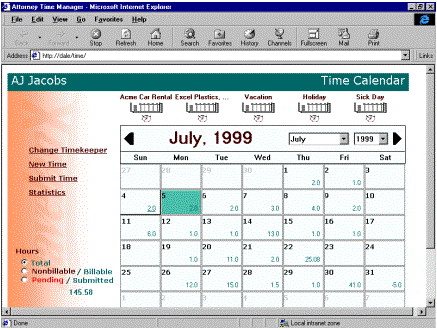
2. The
Timeslip List will display all the time entered for that day. To select the
time entries to be submitted, either click the Status field adjacent to the
desired pending time entries to display a checkmark or press the Select All
button.
The Timeslip List has user expandable column
widths. Click on the intersection of two column headers and drag the mouse to
the left or right to change the width of the column.
Data in the list can be resorted by any
column in the list by clicking on the desired column=s header. For example, click on the Status
column header to sort the time entries by Status. Or, click on the Client ID column
header to sort the time entries by client ID.
3, To
submit the time entries, press the Submit button. A Timeslip Register will
print for proof of submission. At this point these time entries are available
for billing, firm reporting and inquiries.
Submit Time From a Week:
1. Select
(highlight) the desired days from the Time Calendar:
a. There
are 2 ways to highlight contiguous days in the Time Calendar:
$
Click on the
first day (when the mouse pointer is displayed as an arrow), then Shift+Click
on the last desired day (when the mouse pointer is displayed as an arrow).
$
Click on the
first day and while holding the mouse button down, drag across the desired days
and release the mouse button.
b. To
un-highlight selected day(s) in the Time Calendar: right click on the desired
day(s) (when the mouse pointer is displayed as an arrow).
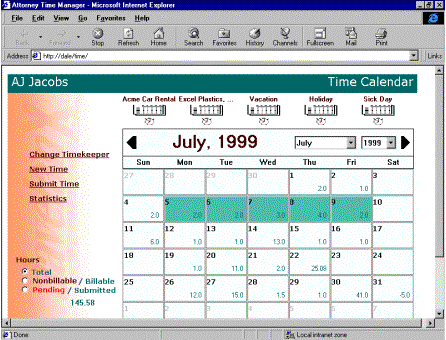
c. To
un-highlight all days in the Time Calendar: left click on any day that is not
highlighted (when the mouse pointer is displayed as an arrow).
2. Click
on any of the highlighted days (when the mouse pointer displays as a hand). The
Timeslip List displays all the time entered for the highlighted days.
3. To
select the time entries to be submitted, either click the Status field of the
desired pending time entries to display a checkmark or press the Select All
button.
The Timeslip List has user expandable column
widths. Click on the intersection of two column headers and drag the mouse to
the left or right to change the width of the column.
Data in the list can be resorted by any
column in the list by clicking on the desired column=s header. For example, click on the Status
column header to sort the time entries by Status. Or, click on the Client ID
column header to sort the time entries by client ID.
4. To
submit the time entries, press the Submit button. A Timeslip Register will print
for proof of submission. At this point these time entries are available for
billing, firm reporting and inquiries.
Submit Time From Month (All Days):
1. Click
the Submit Time option on the main window of the form. The Timeslip List displays
all the pending time entered for the timekeeper.
2. To
select the time entries to be submitted, either click the Status field of the
desired pending time entries to display a checkmark or press the Select All
button.
The Timeslip List has user expandable column
widths. Click on the intersection of two column headers and drag the mouse to
the left or right to change the width of the column.
Data in the list can be resorted by any
column in the list by clicking on the desired column=s header. For example, click on the Status
column header to sort the time entries by Status. Or, click on the Client ID
column header to sort the time entries by client ID.
To submit the time entries, press the Submit
button. A Timeslip Register will print for proof of submission. At this point
these time entries are available for billing, firm reporting and inquiries.
Submit Time From Disjointed Days:
1. Select
(highlight) the desired days from the Time Calendar:a. To highlight multiple disjointed days: Ctrl+Click on the
desired day(s) (when the mouse pointer is displayed as an arrow).
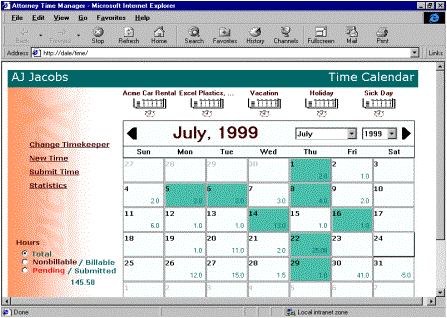
b. To
un-highlight selected day(s) in the Time Calendar: right click on the desired day(s)
(when the mouse pointer is displayed as an arrow).
c. To
un-highlight all days in the Time Calendar: left click on any day that is not
highlighted (when the mouse pointer is displayed as an arrow).
2. Click
on any of the highlighted days (when the mouse pointer displays as a hand). The
Timeslip List displays all the time entered for the highlighted days.
3. To
select the time entries to be submitted, either click the Status field of the
desired pending time entries to display a checkmark or press the Select All
button.The Timeslip List has user expandable column widths. Click on the
intersection of two column headers and drag the mouse to the left or right to
change the width of the column.
Data in the list can be resorted by any
column in the list by clicking on the desired column=s header. For example, click on the Status
column header to sort the time entries by Status. Or, click on the Client ID
column header to sort the time entries by client ID.
4. To
submit the time entries, press the Submit button. A Timeslip Register will
print for proof of submission. At this point these time entries are available
for billing, firm reporting and inquiries.
Timeslip List Report
The Timeslip List Report displays a report of
the time detail for selected time entries on the screen. You can additionally
print the report to a printer.
Report For Single Day:
1. Click
on the desired day (when the mouse pointer displays as a hand). The Timeslip
List displays all the time entered for that day.
2. Select
the time entries to be reported, either click the Status field adjacent to the
desired time entries to display a checkmark or press the Select All button.
The Timeslip List has user expandable column
widths. Click on the intersection of two column headers and drag the mouse to
the left or right to change the width of the column.
Data in the list can be resorted by any
column in the list by clicking on the desired column=s header. For example, click on the Status
column header to sort the time entries by Status. Or, click on the Client ID
column header to sort the time entries by client ID.
3. To
display the report, press the Report button. A report of all the selected time
entries will be displayed on the screen in a browser web page. To print the web
page to the printer, you may need to select:
File / Page Setup and choose Orientation:
Landscape
View / Fonts and choose SmallestFile / Print
Report For Multiple Selected Days:
1. Select
(highlight) the desired days from the Time Calendar:
a. There
are 2 ways to highlight consecutive days in the Time Calendar:
$
Click on the
first day (when the mouse pointer is displayed as an arrow), then Shift+Click
on the last desired day (when the mouse pointer is displayed as an arrow).
$
Click on the
first day and while holding the mouse button down, drag across the desired days
and release the mouse button.
b. To
highlight multiple non-consecutive days: Ctrl+Click on the desired day(s) (when
the mouse pointer is displayed as an arrow, in the upper section of the day
box)
c. To
un-highlight selected day(s) in the Calendar: right click on the desired day(s)
(when the mouse pointer is displayed as an arrow, in the upper section of the
day box)
d. To
un-highlight all days in the Calendar: left click on any day (when the mouse
pointer is displayed as an arrow, in the upper section of the day box)
2. Click
on any of the highlighted days (when the mouse pointer displays as a hand). The
Timeslip List displays all the time entered for the highlighted days.
3. Select
the time entries to be reported, either click the Status field of the desired
time entries to display a checkmark or press the Select All button.
The Timeslip List has user expandable column
widths. Click on the intersection of two column headers and drag the mouse to
the left or right to change the width of the column.
Data in the list can be resorted by any
column in the list by clicking on the desired column=s header. For example, click on the Status
column header to sort the time entries by Status. Or, click on the Client ID
column header to sort the time entries by client ID.
4. To
display the report, press the Report button. A report of all the selected time
entries will be displayed on the screen in a browser web page. To print the web
page to the printer, you may need to select:
File / Page Setup and choose Orientation:
Landscape
View / Fonts and choose Smallest
File / Print
Submitted Time Statistics
The Statistics option (selected in the main
window) displays month-to-date and year-to-date data for key values of interest
for the timekeeper. Values do not include pending time.
Recorded Hours and Dollars
Recorded Hours Total = Sum of Billable Hours
and Nonbillable Hours
Recorded Dollars Total = Sum of Billable Dollars
and Nonbillable Dollars
Billable % = (Billable Hours * 100) / Total
Recorded Hours
Billable Hours = Sum of all Billable Recorded
Time Hours entered for the timekeeper for the month and year-to-date
Billable Dollars = Sum of all Billable Recorded
Time Dollars entered for the timekeeper for the month and year-to-date
Nonbillable % = 100 - Billable %
Nonbillable Hours = Sum of all Nonbillable
Recorded Time Hours entered for the timekeeper for the month and year-to-date
Nonbillable Value = Sum of all Nonbillable
Recorded Time Dollars entered for the timekeeper for the month and year-to-date
Billed Hours and Dollars
Billed Hours = Sum of all Billed Hours for
the timekeeper for the month and year-to-date
Billed Dollars = Sum of all Billed Dollars
for the timekeeper for the month and year-to-date
Relieved Hours = Sum of all Relieved Recorded
Hours (billed and/or written-off) for the timekeeper for the month and
year-to-date
Relieved Dollars = Sum of all Relieved
Recorded Dollars (billed and/or written-off) for the timekeeper for the month
and year-to-date
Realization % = Billed Dollars / Billed Hours
Payment Received
Payment Received = (Sum of Fee Amount Paid
Towards Bill X Timekeeper Working Cash Credit Allocation Percentage) / 100
Cash receipt reversals effective within the
month and year-to-date are subtracted.
Cash Realization
Cash Realization = (Payment Received X 100) /
Billed Dollars
Billable Hours Rank
Firm = Where Sum of Billable Recorded Time
Hours ranks among all other open timekeepers
Department = Where Sum of Billable Recorded
Time Hours ranks among all other open timekeepers in the timekeeper=s same department
Average Hourly Rate
Average Hourly Rate = Billable Dollars /
Billable Hours
Effective Billing Rate
Effective Billing Rate = Billed Dollars /
Billed Hours
Timeslip List Columns
You can select which columns of data are
displayed in the Timeslip List and Submit Time List (except the Check box,
Status, Date Worked and Client ID are permanent standard columns and cannot be
removed or re-ordered). In addition, you can edit the column headings and
display the columns in a different order. To customize the list, choose the Custom
button from the Timeslip List. The Timeslip List Columns dialog box will then
be displayed.
The following columns are available in
addition to the permanent standard columns:
Client Short Name
Matter ID
Matter Short Description
Activity Code
Activity Description
Recorded Hours
Billing Hours
Recorded Value
Billing Value
Office Location ID
Office Location Name
Specialty Code
Specialty Code Description
Phase Code
Phase Description
Task Code
Task Description
Work Code
Work Description
Time Code 1 Abbreviation
Time Code 1 Description
Time Code 2 Abbreviation
Time Code 2 Description
Time Code 3 Abbreviation
Time Code 3 Description
Time Code 4 Abbreviation
Time Code 4 Description
Time Code 5 Abbreviation
Time Code 5 Description
Timeslip Text
Adding a Column
The columns will display in the Timeslip List
and Submit Time List in the order you select them. Therefore, if multiple
columns are to be selected (and they are not displayed in the Available Columns
list box in the order you desire) you must individually select a column and
press Add button for each column desired. If the desired columns are listed in
the Available Columns list box in the order you want, you can select multiple
columns at one time and press the Add button.
To Add an Individual Column:
In the Available Columns list box, click the
check box adjacent to the desired column(s) to display a Tand
press the Add button. The added columns will be appended to the end of the
Selected Columns list box. If the Selected Columns list box is not in the order
desired, you must press the Remove All button and individually add the desired
columns.
To Add All Columns:
If all columns displayed in the Available
Columns list box are to be added, press Add All. You do not need to select each
column individually. The added columns will be appended to the end of the
Selected Columns list box. If the Selected Columns list box is not in the order
desired, you must press the Remove All button and individually add the desired
columns.
Removing a Column
To Remove an Individual Column:
To remove a selected column(s) from the
Selected Columns list box, click the check box adjacent to the desired
column(s) to display a T
and press the Remove button. The column will then be displayed in the Available
Columns list box.
To Remove All Columns:
To remove all column(s) from the Selected
Columns list box, press the Remove All button. You do not need to select each
column individually. The columns will then be displayed in the Available
Columns list box.
Ordering the Columns
To re-order the Selected Columns list box,
press the Remove All button.
The columns will display in the Timeslip List
and Submit Time List in the order you select them. Therefore, if multiple
columns are to be selected (and they are not displayed in the Available Columns
list box in the order you desire) you must individually select a column and
press the Add button for each column desired. If the desired columns are listed
in the Available Columns list box in the order you want, you can select
multiple columns at one time and press the Add button.
To select an individual column, click the
check box adjacent to the desired column(s) to display a T and press the Add button. The added
column(s) will be appended to the end of the Selected Columns list box.
Restore Selected Columns Window
You can undo the changes made to the Selected
Columns list box, since the last timed you saved the Selected Columns list box
(pressed OK). It will be restored to the list prior to pressing OK.
Edit Column Headings
To display user-defined column headings in
the Timeslip List and Submit Time List, click the check box adjacent to the
desired column(s) in the Selected Columns list box to display a Ö and press the
Heading button. The Change Column Heading dialog box will then be
displayed. Enter the desired column heading for the column that is displayed in
the "Current Heading" field and press OK. If you selected multiple
columns to edit, after you press OK the heading for the next column
checked will automatically display.
Change Timekeeper
The Heading contains the name of the
timekeeper whose calendar is displayed. For professional use, this is the name
of the timekeeper that is currently logged in and is the timekeeper that is to
appear on the time entries that are entered. Users who have authority to enter
or maintain another timekeeper=s time can select the Change Timekeeper option on the main window. Time
is entered for a single timekeeper at a time.
If the ID of the desired timekeeper is known:Enter the ID in the Change Timekeeper dialog
box and press the OK button. The name of the selected timekeeper will then be
displayed in the Heading.If the ID of the desired timekeeper is not known:Perform
a Lookup to select the desired timekeeper from the Lookup dialog box. Then
press the OK button in the Change Timekeeper dialog box. The name of the
selected timekeeper will then be displayed in the Heading.
P:\USERS\DWILLIAM\javelan\time entry manual.wpd